Your Downloads folder looks like this: 800 files, zero organization, PDFs next to screenshots next to installers next to files from three years ago. Sorting it by hand is too boring to start and too annoying to ignore, so the mess simply grows. The problem is not the mess; it is that the first action is usually a move instead of an inventory.
TL;DR
Start with a read-only inventory pass that never moves a file.
Require a proposed folder structure with counts before any write.
Send exact duplicates to /Review instead of deleting them.
Approve the plan in writing before the move pass begins.
Never grant delete permission; the agent cannot undo a deletion.
Since October 6, 2026, Pro and Max tasks process connected folders in the cloud.
Separate the read-only pass from the write pass and the workflow stays reversible.
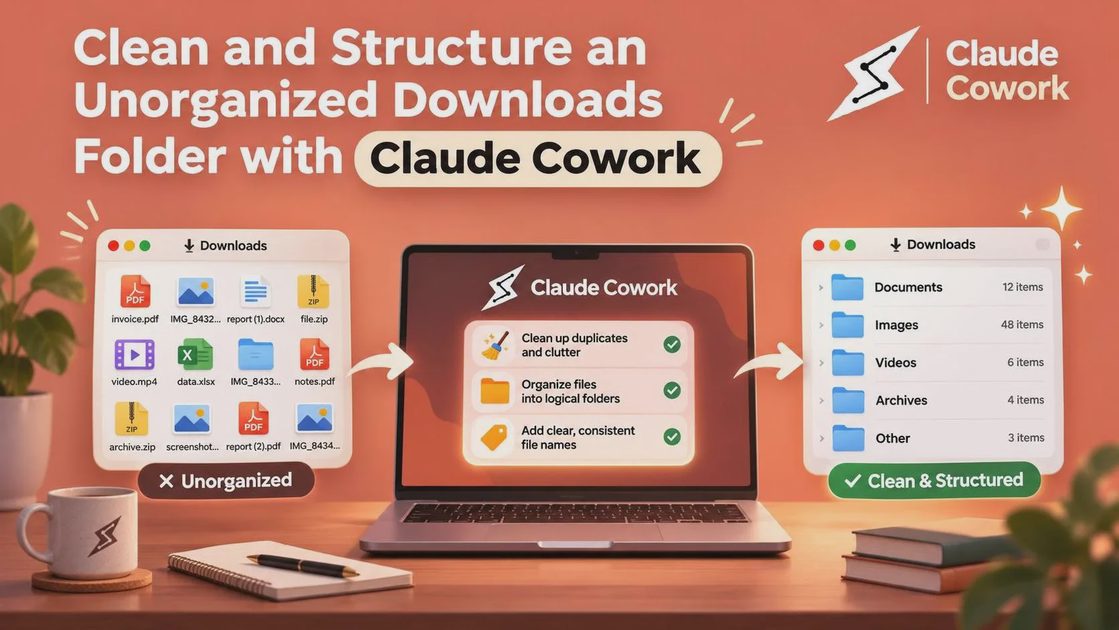
Before you start
You need a paid Claude plan and the desktop app. Free does not include Cowork.
Point the agent at a dedicated working folder, not your entire user profile or a sync root.
Back up anything irreplaceable before the first run.
Do not screen-record the workflow against a real folder that holds documents — filenames alone can expose client names, project codes, or account numbers. Stage a demo folder with dummy files if you need to show someone.
Since October 6, 2026, new Pro and Max Cowork tasks run in a cloud environment. The files remain in the folders you connect, but they are processed on Anthropic’s servers. Do not connect a folder that holds credentials, private keys, client documents under NDA, or anything you would not send to a third-party vendor.
The five-minute setup
Download the desktop app from Claude Cowork, open it, and switch to the Cowork tab. Select the most capable model available to you. Create a dedicated folder on your desktop (Claude-Work/ or similar) and point Cowork only at that folder for the first runs. A dedicated working folder is the blast radius — if the agent makes a mistake, the mistake is contained.
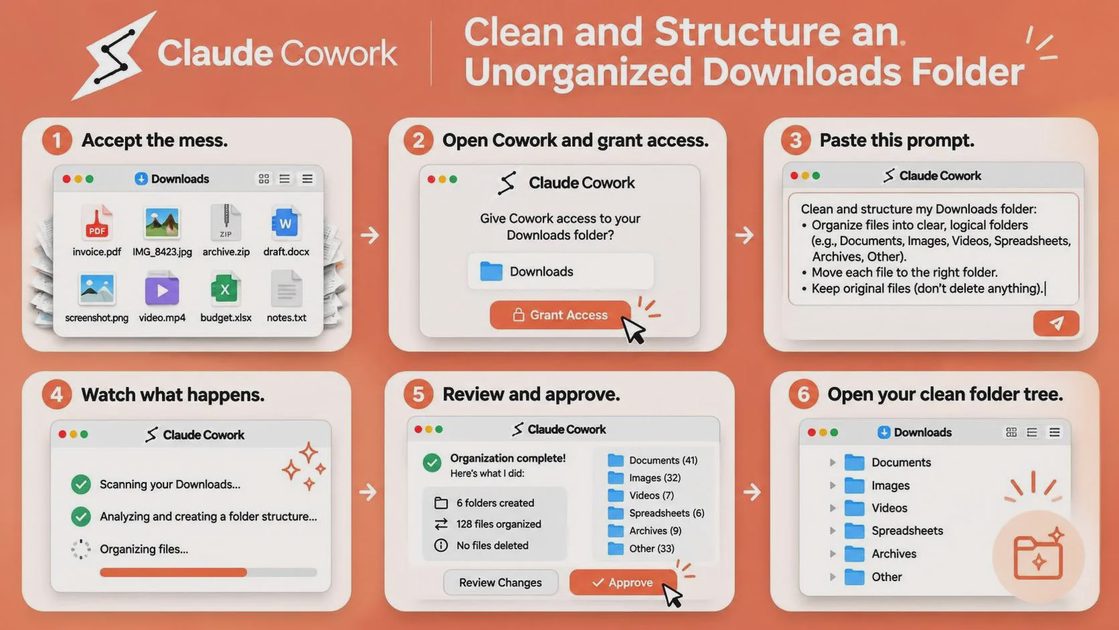
Step 1 — Accept the mess
Look at the folder honestly. Mixed file types, duplicate names with “(1)” and “(2)”, installers you never ran, screenshots of dashboards you no longer need, and PDFs whose content you cannot remember from the filename alone. You cannot design a useful structure for a folder you have not inventoried, and an agent cannot invent one for you either. The inventory is the first deliverable.
Why this step exists: Most failed cleanups begin with an immediate “sort everything” command. Without an explicit inventory, the agent invents categories on the fly and starts moving files before you have seen the plan. Accepting the mess forces a pause that turns a reactive sort into a controlled sequence.
Step 2 — Grant access, but only read access first
Open the Claude desktop app, switch to the Cowork tab, and grant access to the target folder.
Start with read-only.
The read-only pass produces the inventory. That inventory is what you approve before any file is allowed to move. Granting write permission too early turns a reversible workflow into a gamble.
Why this step exists: Permission is sticky. Once write access is granted, a single ambiguous instruction can move hundreds of files. Restricting the first pass to read-only guarantees that the only artifact produced is information you can inspect and edit. The move pass comes later, after the structure has been approved.
Step 3 — The inventory prompt
Paste the following block. It forces a pure read-only pass.
Inventory every file in the mounted folder. Do not move, rename, or delete any file in this pass.

Report:
1. Total file count and breakdown by extension.
2. Exact (byte-identical) duplicates, grouped together.
3. Files older than one year (stale).
4. A proposed folder structure with estimated file counts per category. Discover categories from content, not just extensions. An invoice PDF and an ebook PDF must not land in the same bucket.
5. A list of files that do not fit any proposed category.

Write the full inventory to inventory.md in the same folder.
Stop after the inventory. Wait for my approval of the structure before any further action.
Cowork reads file content, not just extensions. That is why an invoice and an ebook, both PDFs, can be separated. A content-aware pass is the only way the proposed structure has a chance of being useful.
Why this step exists: A prompt that omits “do not move, rename, or delete any file in this pass” will often begin relocating files while it is still discovering categories. The result is a half-moved folder and no clean baseline to roll back to. The inventory prompt exists to make premature moves structurally impossible.
Step 4 — The move prompt, after you approve the structure
Once you have edited and approved the structure in inventory.md, run the second prompt.
The approved structure is the one I confirmed in inventory.md. Execute it now under these rules:

- Move files into the approved categories only.
- Exact duplicates go to /Review. Do not delete them.
- Preserve the original filename or rename to YYYY-MM-DD-descriptive-name.ext when the original name is meaningless.
- Log every move as old-path -> new-path in moves.log.
- Create summary.md at the root with final counts, items sent to /Review, and any files left unmoved.

Do not delete, overwrite, or modify file contents. If a file is ambiguous, leave it in place and list it in summary.md.
A duplicate is a judgment call. The agent does not have enough context to decide which copy is canonical, so it quarantines. That is the correct default.
Why this step exists: Without the explicit rule that duplicates go to /Review, the agent may treat the second copy as disposable and send it to the trash. Once a file is deleted, the workflow can no longer reverse the decision. Quarantine preserves every byte while still clearing the main categories.
Step 5 — Watch the plan, then approve it
Before any move executes, Cowork shows the proposed folder tree and the planned moves. Read it once. Look for three failure modes: a category that contains only one or two files (fold it into a broader one), a file type that landed in the wrong bucket, and anything that looks like the only copy of something important.
The approval step is the whole safety mechanism. Without it, this is a gamble with your files, not a workflow.
Why this step exists: The approval screen is the only moment a human sees the complete plan before execution. Skipping it means the first time you discover a mis-categorized file is after the move has already happened. Plan approval turns an irreversible action into a reversible decision.
Step 6 — Open the clean folder tree
When the move pass finishes you should see a structure similar to this:
Downloads/
├── Documents/
│   ├── Work/
│   └── Personal/
├── Images/
├── Spreadsheets/
├── Videos/
├── Installers/
├── Archive/
├── Other/
├── Review/
├── moves.log
└── summary.md
The summary.md file is not decoration. It is the only artifact that lets you check the work without opening every subfolder.
Why this step exists: A clean tree that lacks a verification artifact forces you to open every folder to confirm success. summary.md and moves.log together give you an audit trail that can be checked in under a minute.
How to adjust the prompts
Add one folder rule per extra category you already know you need (for example, “Invoices” or “Contracts”).
Drop any paragraph that refers to a shop or accounting folder if those do not exist in your data.
Change the naming format from YYYY-MM-DD-descriptive-name.ext to whatever convention already exists in the folder.
The prompts are a starting point. The rules should match the folder, not the other way around.
What happened when I ran this on a 180-file Downloads folder
I pointed the workflow at a real 180-file Downloads folder that contained mixed types, 14 exact duplicates, one nested folder with a misleading name, and one .tmp file that looked like a document from the filename. This is one folder on one machine, not a benchmark.
The read-only inventory correctly separated invoice PDFs from ebooks and flagged the 14 duplicates. Two proposed categories each contained only one or two files, so I folded them into broader ones before approval. The move pass placed 152 files into the main categories, sent the 14 duplicates to /Review, left the .tmp file unmoved because the prompt treats ambiguous files as stay-in-place, and left 13 additional files unmoved for other reasons (ambiguous category, already represented in /Review, or zero-byte placeholders). summary.md listed total processed, category counts, reclaimable space from installers, and the full list of items in /Review. The move pass paused for explicit approval and did not run straight through. The full cycle from inventory to verification took under twelve minutes of active time.
Stage | Files in | Files out | Review | Left unmoved | What needed fixing |
|---|---|---|---|---|---|
Read-only inventory | 180 | 180 (unchanged) | 14 flagged | 0 | None |
Structure approval | — | — | — | — | Folded two tiny categories |
Move pass | 180 | 152 placed | 14 | 14 (1 .tmp + 13 other) | None |
Verification | 180 | 166 accounted | 14 | 14 | .tmp correctly left in place |
Arithmetic: 152 placed + 14 in /Review + 14 left unmoved = 180. The table shows that the safety came from the read-only pass and the explicit approval, not from the model’s judgment.
The no-delete rule, and how to undo a run
Never grant delete permission. Duplicates and anything ambiguous go to /Review. The undo trail is moves.log: every line is an old-path to new-path record, so reversing a run is a matter of reading the log backwards and moving the files back.
The delete permission is the one permission you cannot take back — so do not grant it.
When something goes wrong
If a file landed in the wrong category, edit the prompt with a clearer rule and run the move pass again; moves.log makes the previous placement reversible.
If the run stopped mid-pass, open moves.log to see exactly which files were moved and which were not, then resume or reverse as needed.
If /Review contains a file you need, move it back manually — /Review is a quarantine, not a trash can.
Rule in the prompt | What it prevents | What happens if the rule is missing |
|---|---|---|
“Do not move in the inventory pass” | Premature moves | Files move before the structure is approved |
“Duplicates go to /Review” | Deletion of the wrong copy | The only copy of a document can be lost |
“Log every move to moves.log” | No undo trail | Reversing a bad run requires manual search |
“Create summary.md” | No verification artifact | Checking the result requires opening every folder |
The table maps each safety rule to the concrete failure it blocks. Removing any row turns a controlled workflow into an uncontrolled one.
When to skip this workflow
Filenames carry no useful signal and the files have no readable text layer.
Files come from multiple projects with no consistent prefix or naming convention.
The folder is a sync root where a move will simply trigger a re-download from another device.
In those cases a script or a human pass is still the safer tool.
Final Thoughts
Cleaning a Downloads folder is a sequence of reversible decisions. Keep the read-only inventory separate from the write pass, force plan approval, and never grant delete. Before you run it on anything you care about, ask three questions: What can it do in this situation? What can go wrong if a category is wrong? What should a human still review before the next scheduled run?
FAQ
Will Cowork delete my files?
Not if you follow the prompts above. Both the inventory and the move prompts explicitly forbid deletion. Duplicates go to /Review.
How do I undo a move?
Open moves.log. Every line records the original path and the new path. Move the files back in reverse order.
Can I organize a synced folder?
You can, but a move may simply cause the sync client to re-download the file on another device. Test on a local copy first.
What happens to duplicates?
Exact (byte-identical) duplicates are moved to /Review. The agent does not decide which copy to keep.
Does this run locally or in the cloud?
Since October 6, 2026, new Pro and Max Cowork tasks process the connected folder in a cloud environment. The files stay in your folders, but the computation happens on Anthropic’s servers.
Can I schedule it to run monthly?
Yes. Once the prompts and the working folder are stable, turn the inventory-plus-move sequence into a scheduled task. The desktop app must be open and the machine awake at the scheduled time.
For AI tool features, usage rules and available plans, refer to their official sites.
Leave your thoughts here, too.