Every morning starts the same way for most knowledge workers: open the inbox, scan for what actually needs a decision, and lose the first clear hour to triage. The replies themselves are rarely the expensive part. The cost is not the reply; it is the re-decision every morning — and a scheduled briefing can remove the re-decision if you define the rules first.
TL;DR
A briefing is a triage decision plus an action list, not a summary of everything that arrived.
Define three buckets before the first run: Today, This week, and Read-only.
Enable the mailbox connector and your task tool in Settings → Connectors.
Run the prompt manually for several mornings before turning it into a scheduled task.
Always include the “skip already moved” line so the same messages are not re-filed.
Keep the briefing draft-only: never send, delete, or create calendar events.
The quality of the output is decided by the rules you write, not by the model.

What the briefing actually produces
The output is a single dated Markdown file written to a folder you grant, for example Daily-Brief/2026-11-10.md. It contains a one-paragraph intro, a Today section (messages that need a decision today), a This week section (needs a reply, not today), and a Read-only section (newsletters, notifications, CCs). The file is the briefing; the inbox is the source. If the file is wrong, you fix the prompt, not the inbox.
The three buckets, defined
Today — from a client, manager, or vendor, or the subject contains a deadline keyword.
This week — needs a reply but not today.
Read-only — newsletters, automated notifications, anything where you are on CC.
A bucket is not a folder — it is a decision rule, and if you cannot write the rule in one sentence, the bucket will be wrong.
The setup: connectors first, then the task
Cowork only sees the tools you have already connected. Open Claude Cowork from the desktop app sidebar, then complete these four steps.
Go to Settings → Connectors and confirm the mailbox connector (Gmail, Outlook, or an IMAP bridge) is enabled.
Enable your task tool (Todoist, Things, Microsoft To Do, or the equivalent you already use).
Return to Cowork and click Create scheduled task.
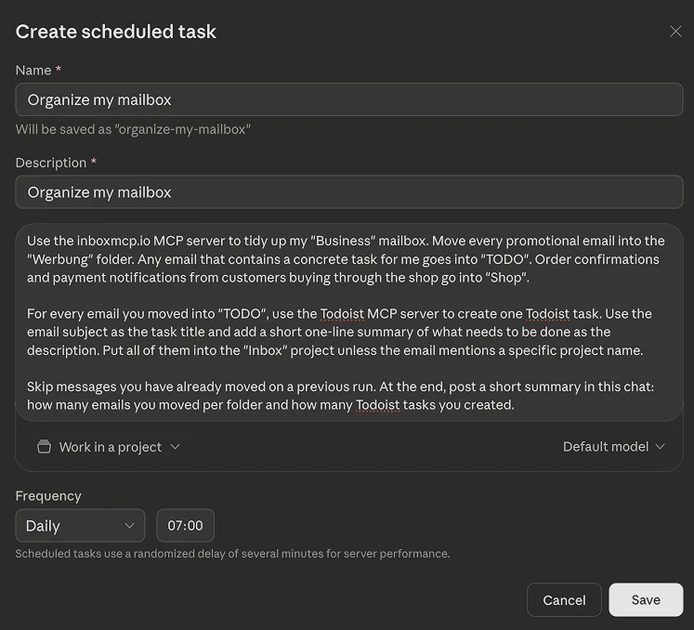
Paste the prompt below, set the schedule (for example Daily at 07:00), name the task, and save.
The desktop app must be open and the machine awake at the scheduled time. If the laptop is asleep, the task fires when the machine wakes, not at the exact minute you chose.
The prompt
Paste the following block into the scheduled-task dialog. Adjust folder names and keywords to match your own inbox.
Using the connected mailbox, process only new messages since the last run.

Sort every message into exactly one of these three buckets:

Today — from a client, manager, or vendor, or the subject contains any of: deadline, due, urgent, ASAP, by EOD, by tomorrow.
This week — needs a human reply but does not meet the Today rules.
Read-only — newsletters, automated notifications, receipts, or any message where I am only on CC.

Write the briefing to Daily-Brief/YYYY-MM-DD.md with this structure:
- One short intro paragraph
- ## Today
- ## This week
- ## Read-only

For every message moved into Today, also create a task in the connected task tool. Use the email subject as the task title and a one-line summary as the description.

Skip every message that was already moved on a previous run.
Never send email, never delete messages, never create calendar events.
At the end, post a one-line summary in this chat: counts for Today, This week, and Read-only.
Two lines people often drop are the most important. “Skip already moved” stops the task from re-filing the same messages every morning. The closing summary is the part you actually glance at; without it the briefing becomes a wall of Markdown you stop reading.
Iterate before you schedule — the part most tutorials skip
Do not create the scheduled task on day one. Run the prompt manually for three to five mornings. Each morning, open the generated file and change one thing: a bucket rule, the ordering, the word-count cap, or the format. A scheduled task that produces the wrong format every morning is worse than no task at all, because you stop trusting it and stop reading it. Only after the output feels useful for three consecutive days should you turn the same prompt into a scheduled task.
What one week of briefings actually looked like
I ran the three-bucket prompt against a Gmail account that receives roughly 120 messages a day. I granted a Daily-Brief/ folder, set the schedule for 07:00, and kept the desktop app open on a machine that stayed awake. This is one person’s week, not a benchmark.
On Monday the Today bucket correctly caught two client requests and one vendor deadline; it also pulled in one internal newsletter that should have been Read-only. I tightened the Today rule. By Wednesday the buckets stabilized. The app was asleep at 07:00 on Thursday, so the task fired at 08:14 when the lid opened. Across five weekdays the Today count stayed between 4 and 9 messages, This week between 11 and 18, and Read-only absorbed the rest. Nothing that required a same-day decision was missed after the second iteration.
Day | Messages in | Today | This week | Read-only | Fired on time | What needed fixing |
|---|---|---|---|---|---|---|
Mon | ~125 | 7 | 14 | rest | Yes | Newsletter in Today |
Tue | ~110 | 5 | 12 | rest | Yes | None |
Wed | ~130 | 9 | 16 | rest | Yes | None |
Thu | ~115 | 4 | 11 | rest | No (08:14) | Sleep policy |
Fri | ~120 | 6 | 15 | rest | Yes | None |
The table shows that the format stabilized quickly once the bucket rules were explicit, and the only operational failure was a sleeping machine.
What the briefing should not do
Never send email.
Never delete messages.
Never create calendar events without explicit approval.
A briefing that takes irreversible action is no longer a briefing; it is an agent with your inbox. Keep the prompt draft-only.
How to verify the briefing before you trust it
Run three checks before you rely on the file.
Bucket counts in the Markdown match the number of messages that actually landed in each category.
The Today list contains no newsletters or pure notifications.
A simple processed.log (or the task’s own run history) shows the same message IDs as the previous run plus only the new arrivals.
Bucket | Decision rule | Output | Must never contain |
|---|---|---|---|
Today | Client/manager/vendor or deadline keyword | Action list + task created | Newsletters, CCs, receipts |
This week | Needs a reply, not today | Deferred action list | Same-day deadlines |
Read-only | Newsletters, notifications, CCs | Awareness only | Anything requiring a reply |
The table is the acceptance gate. If any row fails, edit the prompt and re-run manually before the next scheduled execution.
Final Thoughts
A useful morning briefing is a triage system you designed, not a summary the model invented. Define the three buckets, iterate the format by hand for several mornings, then hand the stable prompt to a schedule. Before you trust any automated run, ask three questions: What can it do in this situation? What can go wrong if a bucket rule is too loose? What should a human still review before acting on the Today list?
FAQ
Does Cowork send the briefing to me?
No. It writes a Markdown file into the folder you granted. You open the file (or pin the task) to read it. Nothing is emailed unless you add that step yourself.
Can it reply to emails?
Not with the prompt above. The instructions explicitly forbid sending. If you later want draft replies, add a separate, supervised step; do not put send permission inside the daily triage task.
Why did the scheduled task not run?
The desktop app must be open and the machine awake. If the laptop is asleep or the app is closed, the task waits until the next time both conditions are true.
Does it re-process the same messages?
Not if the prompt contains the “skip already moved” line. Without that line the same messages can be filed again every morning.
Can I use Outlook instead of Gmail?
Yes. Any mailbox connector that appears under Settings → Connectors works. Adjust the folder names in the prompt to match the labels or folders your Outlook account uses.
What happens if the app is closed?
The scheduled task does not fire. When you next open the desktop app and the machine is awake, the task runs with whatever messages are then new. It does not back-fill missed days unless you ask it to.
For AI tool features, usage rules and available plans, refer to their official sites.
Leave your thoughts here, too.