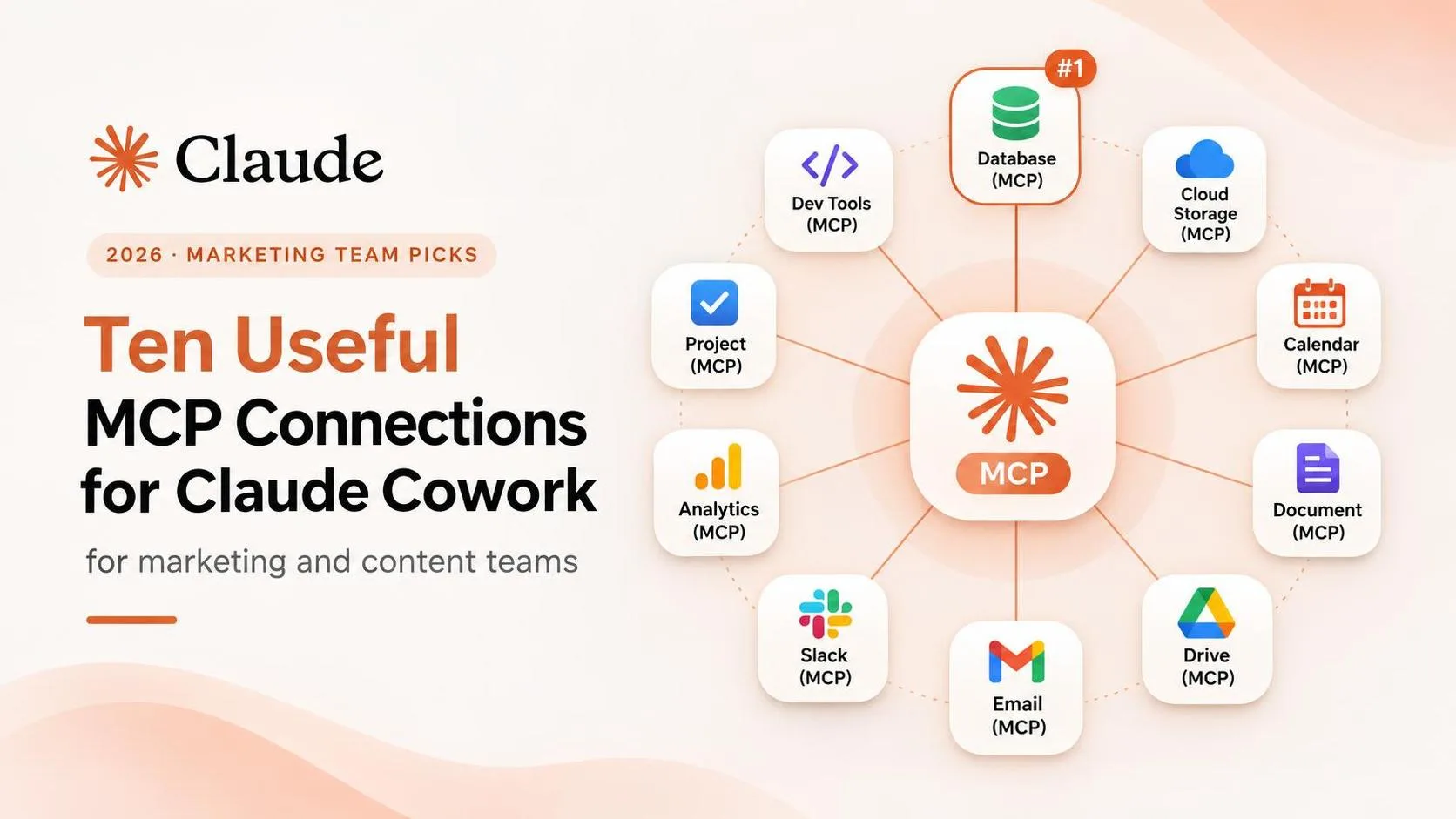
Most people think they have a prompt problem. They actually have a context problem. The information Claude needs is sitting in email, calendar, documents, tickets, and databases, and the daily loop of search → copy → paste → wait → copy again does not scale. Skills tell Claude how to work; connectors give Claude access to where the work actually lives — and every connector is an authorization decision disguised as a convenience.
TL;DR
A connector is an authorized bridge that lets Cowork read or act inside an external app.
The ten useful ones fall into five categories: Docs, Communication, Design, Code & Data, Operations.
Install path: Customize → Connectors → Add connector, then choose sign-in method.
Permissions are cumulative across roles — blocking one role does not block another.
Computer use runs without the permission checks that gate other tools.
Read access and write access are different decisions; treat them separately.
Add a connector only when you understand what it can reach, write, and move.
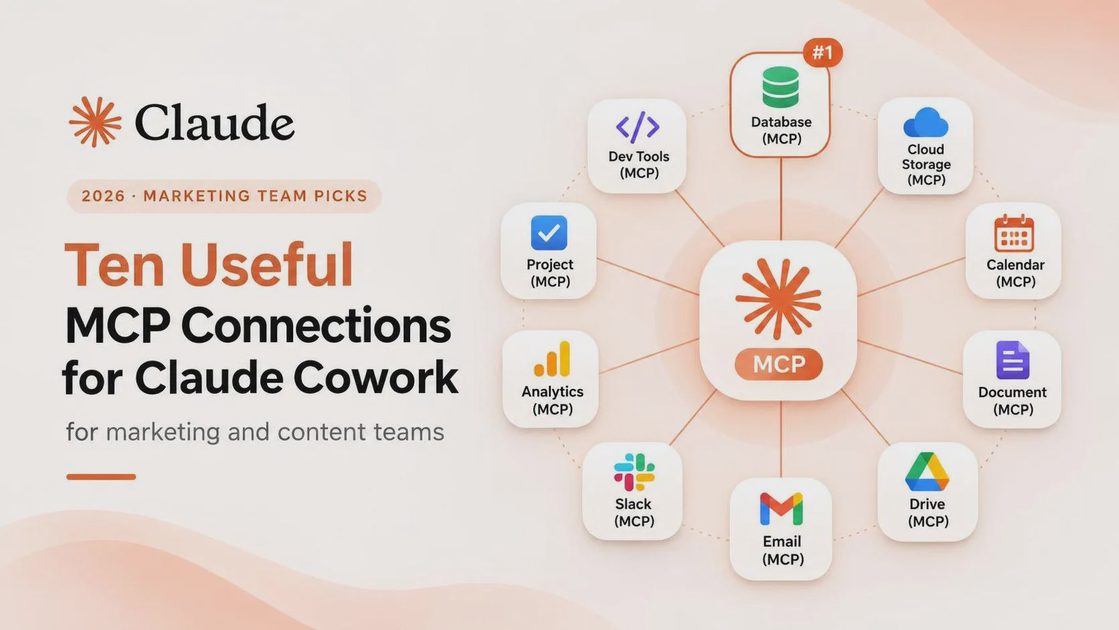
How to install a connector
Open Claude Cowork, go to Customize → Connectors → Add connector. Browse the directory or add a custom connector by supplying a server URL and an auth method (sign in now, sign in when needed, or no sign in). A custom MCP server must be reachable from Anthropic’s IP ranges on the public internet; a server behind a firewall needs the network-requirements page before it will respond.
Docs & Knowledge
1.Google Drive
Files that matter are scattered across folders Claude cannot see, so every request begins with a hunt and a paste. The Google Drive connector lets Cowork search documents, summarize folders, and compare files without the manual copy step.
Search my Drive for the last three quarterly planning docs.
Summarize the recurring themes and the open decisions that appear in more than one file.
List the source file name and last-modified date for every claim.
It cannot fully read every file: large files or image-only scans may return incomplete text, so treat the output as a starting map, not a final extract.
2.Notion
Notion is where good ideas go to hide — pages, databases, and linked views that never surface when you need them. The Notion connector lets Cowork search pages, summarize notes, and reorganize information into a usable shape.
Build a one-page project timeline from the existing Notion pages tagged “Q4 launch.”
Include owners, due dates, and any blockers already recorded on those pages.
Output as a Markdown table I can paste into Slack.
Nested databases and linked views do not always resolve the way the UI shows them; verify any critical date or owner against the original page.
Communication
3.Gmail
The inbox knows more about the work than the chat window does, yet most of that context stays trapped behind search. The Gmail connector lets Cowork search threads, summarize conversations, and draft replies.
Find every thread from the last seven days that still needs a reply from me.
For each, list sender, subject, the ask in one sentence, and any stated deadline.
Do not send anything — draft only.
Sending is a write action and needs its own explicit approval; keep the first prompts read-only until the pattern is stable.
4.Google Calendar
Planning without the calendar is planning in a vacuum. The Google Calendar connector lets Cowork find open blocks, detect overloaded days, and prepare agendas from what is already scheduled.
Audit my calendar for the next five working days.
Flag any day with less than two hours of continuous focus time.
Propose three 90-minute focus blocks I could protect, and list the meetings that would need to move.
Calendar writes should be reviewed before they go out; treat every create or update as a supervised step.
Design & Content
5.Figma
“Match the design” fails when the agent only sees a screenshot and cannot inspect spacing, components, or variables. The Figma connector gives Cowork access to frames, layouts, and variables so it can plan from design intent.
Open the frame named “Checkout – Desktop” in the current Figma file.
Produce an implementation plan that lists every component, its variants, and the spacing tokens used.
Call out any hard-coded values that should become variables.
The connector reads structure, not visual judgment. Pixel-level polish and accessibility checks remain human steps.
6.Canva
Moving from concept to finished asset usually means bouncing between tools. The Canva connector lets Cowork go from brief to copy to layout inside one session.
Create a five-slide carousel from this brief: [paste brief].
Use our existing brand kit if available.
Output the slide titles, body copy, and a short note on suggested visuals for each slide.
Brand-rule enforcement is a review step, not an automatic guarantee. Check the generated layout against the actual brand kit before publishing.
Code & Data
7.GitHub
Generic coding help is weak when Claude cannot see the repository. The GitHub connector lets Cowork read files, review issues, and check pull requests in context.
Triage the open issues labeled “bug” in the current repo.
Group them by severity, note which ones have reproducing steps, and list the three that look safest to fix first.
Do not create or comment on issues yet.
Write actions (creating issues, commenting, opening PRs) should be approved one by one; start with read-only triage.
8.BigQuery
Asking questions about warehouse data usually means waiting on a dashboard or an analyst. The BigQuery connector lets Cowork review schemas, generate SQL, and explain results.
The metric “weekly active workspaces” dropped 12% week-over-week.
Inspect the relevant tables, propose a SQL query that isolates the change by plan tier and region, and explain the result in plain language.
Do not run any query that looks expensive without confirmation.
A generated query still needs a cost and correctness check before it runs against production data.
Business Operations
9.Stripe
Billing questions require digging through the dashboard and reconstructing history by hand. The Stripe connector gives Cowork access to customers, payment history, and invoices.
Summarize refund patterns for the last 90 days.
Group by reason code and plan tier, and flag any customer who has requested more than one refund in the period.
Read-only — do not issue refunds or modify customers.
Any connector with payment data is high-sensitivity. Use least-privilege scopes and keep write actions off until there is a clear, reviewed process.
10.Slack
Decisions get buried in threads and are hard to recover later. The Slack connector lets Cowork search channels, summarize discussions, and identify decisions.
Search the #product-launch channel for the last 14 days.
Extract every explicit decision (look for “we decided,” “agreed,” “going with”), the date, and the person who stated it.
Output a decision log I can paste into Notion.
The connector reads what you can read, not what you should read. Private channels need separate access; do not assume visibility equals permission.
The ten connectors at a glance
The table below summarizes reach, write capability, and the main risk to watch for each connector.
Connector | Category | What it reaches | Can it write? | Risk to watch |
|---|---|---|---|---|
Google Drive | Docs & Knowledge | Files and folders | Limited | Large or image-only files |
Notion | Docs & Knowledge | Pages and databases | Yes | Nested / linked views |
Gmail | Communication | Threads and labels | Yes (send) | Accidental send |
Google Calendar | Communication | Events and calendars | Yes | Unreviewed invites |
Figma | Design & Content | Frames, components, variables | Limited | Visual judgment still human |
Canva | Design & Content | Designs and brand kits | Yes | Brand-rule drift |
GitHub | Code & Data | Repos, issues, PRs | Yes | Unapproved comments / issues |
BigQuery | Code & Data | Schemas and query results | Query execution | Costly queries |
Stripe | Business Operations | Customers, payments, invoices | Yes | Payment data sensitivity |
Slack | Business Operations | Channels and threads | Yes | Private-channel over-reach |
The table shows that write capability is common; the differentiator is how carefully each write is gated.
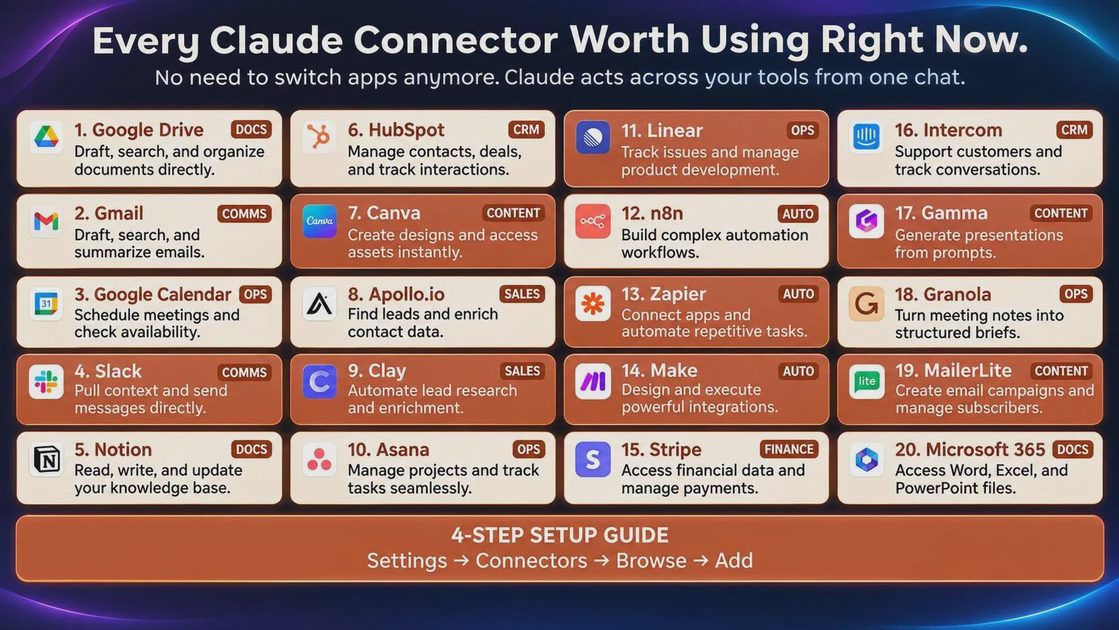
The permission ladder, and what each level can do
Permission is not a single switch. It is a stack.
Level | What it controls | What it does not control | The common mistake |
|---|---|---|---|
Connector enablement | Whether the connector appears at all | What the OAuth token can actually do | Assuming “enabled” means “safe” |
OAuth scope | Read vs write surfaces inside the app | Computer-use actions on web pages | Granting broad scopes “just in case” |
Write approval | Individual create / update / send actions | Read actions and computer use | Turning on “always allow” for convenience |
Computer use | Browser clicks and form submits | Connector-level permission checks | Treating computer use as gated like other tools |
Deletion approval | Explicit delete operations | Moves and overwrites that are not deletes | Forgetting that move ≠ delete |
Permissions are cumulative across roles. Blocking a connector in one role has no effect on a member who also holds another role that grants it.
The two facts most guides skip
Connector permissions are cumulative across roles. Blocking a connector in one role has no effect on a member who also holds another role that grants it. Review access at the person level, not only at the role level.
Computer use runs without the permission checks that gate other Cowork tools. A connector that looks read-only can still be used to click through a page and submit a form. Treat computer use as a separate, higher-risk surface.
What I found when I connected five of these in one afternoon
I connected Google Drive, Gmail, Notion, GitHub, and Slack on a single account in one afternoon. This is one afternoon on one account, not a benchmark. Drive and Notion connected cleanly on the first try. Gmail required a manual OAuth re-auth after the browser redirect did not register in the desktop app. The “always allow” toggle appeared on the Gmail send action and on GitHub comment creation; I left both off. Roughly half the first-run prompts produced a result that needed a second clarifying pass, mostly to tighten date ranges or channel names. Drive returned solid cross-document themes; Gmail’s pending-items list was usable after one refinement to exclude newsletters.
Connector | Connected on first try | Needed re-auth | “Always allow” appeared | Output needed a second pass |
|---|---|---|---|---|
Google Drive | Yes | No | No | No |
Gmail | No | Yes | Yes | Yes |
Notion | Yes | No | No | Yes |
GitHub | Yes | No | Yes | Yes |
Slack | Yes | No | No | Yes |
The table shows that connection friction and output quality are separate issues; both are normal on a first afternoon.
When a connector does nothing, check these three things
The connector is enabled but the tool is not exposed — open Customize → Connectors and confirm the enabled state.
The OAuth scope is too narrow for the action — a read-only scope cannot write or send.
The server is behind a firewall and not reachable from Anthropic’s IP ranges — custom MCP servers must be publicly reachable or explicitly allowed.
Final Thoughts
Connectors remove the copy-paste tax, but each one is an authorization decision. Add them when the context they unlock is worth the surface they expose, keep write actions supervised, and review cumulative role permissions regularly. Before you rely on any new connector, ask three questions: What can it do in this situation? What can go wrong if a scope is too broad? What should a human still review before a write leaves the working folder?
FAQ
Do I need to code to use these?
No. Once a connector is installed and authorized, you trigger it with ordinary natural-language prompts inside Cowork.
Are connectors the same as MCP servers?
Connectors are the Cowork-facing packaging of MCP servers (or equivalent integrations). The underlying protocol is MCP; the thing you enable in Customize → Connectors is the connector.
Why did my connector do nothing after I enabled it?
Check that the connector is fully enabled, that the OAuth scope covers the action, and that any custom server is reachable from Anthropic’s network. Also confirm you are asking for an action the connector actually exposes.
Are connector permissions per-user or per-role?
Both. Role policies exist, but permissions are cumulative across roles. A person who holds two roles receives the union of the grants.
Can a connector send data outside my working folder?
Yes. A connector can move or copy data from a working folder to an external service (email, Slack, Drive, etc.). Treat that as an intentional data-exfiltration path and scope it tightly.
Which connector should I add first?
Start with the single source of context you currently copy-paste most often — usually Gmail or Drive. Add write-capable connectors only after the read patterns are stable.
For AI tool features, usage rules and available plans, refer to their official sites.

Leave your thoughts here, too.